
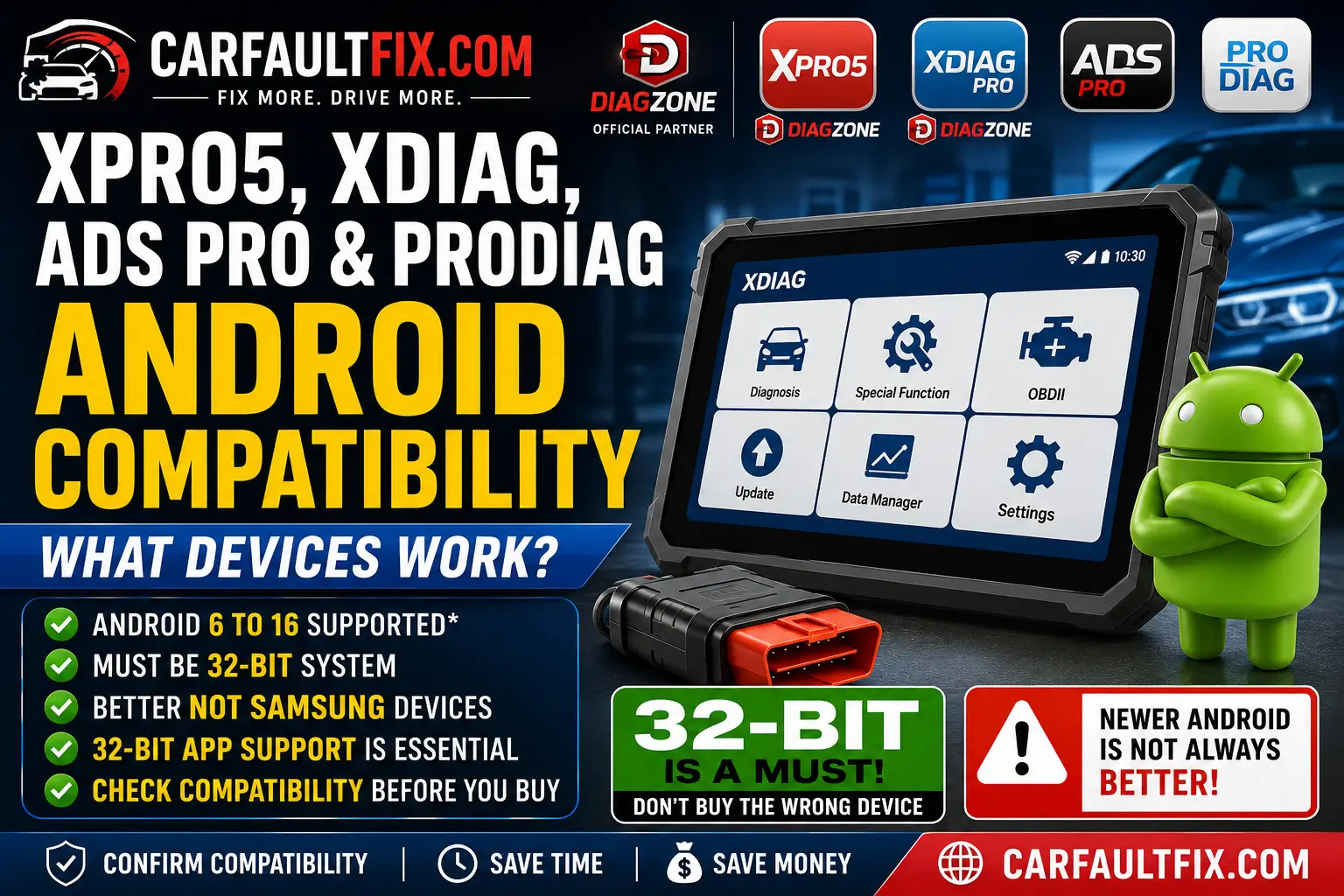
XPRO5, XDIAG, and DIAGZONE Pro : Which Android Devices Are Compatible?
If you are planning to run XPRO5, XDIAG, ADS Pro or ProDiag on an Android phone or tablet, here is the mistake you should avoid: do not assume that a newer Android device is automatically a better choice.
That assumption is wrong.
Based on user feedback and compatibility reports, the most important factor is not simply whether the device runs Android 12, 14, 15 or 16. The critical issue is often whether the device can still run 32-bit Android applications.
The short answer
For these diagnostic applications, compatibility depends on more than the Android version.
Before buying a phone or tablet, check:
-
Android version
-
CPU architecture
-
32-bit application support
-
Manufacturer restrictions
-
Bluetooth and USB compatibility with your diagnostic interface
Field reports commonly show successful use across older and mid-generation Android versions, while compatibility becomes less predictable on newer devices that have moved to a 64-bit-only environment.
Why 32-bit support matters
This is the part many users miss.
A modern phone may have a powerful 64-bit processor, plenty of RAM and the latest version of Android—and still be a bad choice for certain diagnostic applications.
Why?
Because some automotive diagnostic apps and their supporting components were built around 32-bit ARM compatibility. If the Android device no longer supports 32-bit applications, the software may:
-
Refuse to install
-
Display an "app not supported" message
-
Crash immediately after opening
-
Install but fail to communicate correctly with the VCI
-
Work inconsistently after an Android update
Reports from the diagnostic community have repeatedly highlighted this issue, especially with newer devices that no longer include legacy 32-bit application support.
Android version: newer is not always better
The original compatibility guidance shared with us suggests Android versions ranging from Android 6 through Android 16 may be encountered in customer setups.
However, you should not interpret that as a guarantee that every Android 6–16 device will work.
That would be misleading.
Two devices running exactly the same Android version can have completely different compatibility because of:
-
CPU architecture
-
32-bit application support
-
Manufacturer modifications to Android
-
Security restrictions
-
Bluetooth and USB implementation
-
The specific version of the diagnostic application
Recent compatibility discussions generally identify Android 7 through Android 13 as a safer range for several XDiag- and DiagZone-related environments, while Android 14 compatibility depends heavily on whether 32-bit application support is still present.
What about Android 14, 15 and 16?
This is where buyers need to slow down.
Do not buy the newest tablet just because it has better specifications.
A new Android 15 or Android 16 device may use a modern 64-bit-only environment. If the diagnostic software you need depends on 32-bit compatibility, that expensive new tablet could be completely useless for your workshop.
The smarter approach is simple:
Verify 32-bit application support before purchasing the device.
Android version alone is not enough.
There are already reports of users experiencing compatibility problems with newer phones and tablets, while older devices running Android 12 or 13 continue to work reliably.
Is Samsung recommended?
Based on customer feedback, Samsung devices should be approached with caution for this specific use case.
That does not mean every Samsung phone or tablet is incompatible.
Some Samsung devices may work perfectly. Others—especially newer models or devices with different processor configurations—may not provide the required environment for older 32-bit applications.
The problem is not the Samsung logo. The problem is that compatibility can vary significantly between models.
So the correct question is not:
"Does XDIAG work on Samsung?"
The better question is:
"Does this exact Samsung model support the Android version and 32-bit application environment required by my diagnostic software?"
If you cannot confirm that answer before buying, you are taking an unnecessary risk.
Recommended approach before buying an Android device
Before purchasing a phone or tablet for XPRO5, XDIAG, ADS Pro or ProDiag, check the following:
1. Confirm the exact Android version
Do not rely on advertisements saying "latest Android."
For workshop diagnostic use, stability matters more than having the newest operating system.
2. Check 32-bit application support
This is essential.
A device with a 64-bit processor can still support 32-bit applications—but some newer devices do not.
Look specifically for support for legacy ARM 32-bit / armeabi-v7a applications where relevant to the software version you intend to use.
3. Avoid automatic system upgrades
If your diagnostic setup is working correctly, blindly updating Android can create compatibility problems.
The latest Android update is designed primarily for security and consumer applications—not necessarily for aftermarket automotive diagnostic software.
4. Test Bluetooth and VCI communication
Installing the application successfully does not guarantee that the diagnostic interface will work correctly.
You should test:
-
Bluetooth pairing
-
VCI detection
-
Vehicle communication
-
Automatic VIN reading
-
Live data
-
Special functions and coding, where supported
5. Use a dedicated diagnostic device when possible
For professional use, a dedicated tablet is often the better option.
Why?
Because you can keep the device on a known working Android version and avoid unnecessary updates, extra applications and configuration changes.
A diagnostic tablet does not need to be the fastest tablet on the market. It needs to be stable and compatible.
Our practical recommendation
If you are choosing a device specifically for XPRO5, XDIAG, or DIAGZONE Pro , do not chase the newest Android version.
Instead, prioritize this order:
-
Confirmed compatibility with your diagnostic application
-
32-bit application support
-
Stable Android version
-
Reliable Bluetooth and USB connectivity
-
Good battery life and workshop durability
-
Adequate storage and RAM
In many cases, an older or mid-range Android tablet that is confirmed compatible is a better investment than a brand-new flagship device that cannot run the required application.
Final thoughts
The biggest mistake is assuming:
New phone = better diagnostic device.
That is simply not true.
For XPRO5, XDIAG, DIAGZONE Pro, the Android version is only one part of the equation. Architecture and 32-bit compatibility can be even more important.
Before buying a new phone or tablet, verify the exact model—not just the Android version or brand.
A device running Android 13 with confirmed compatibility may be a far better choice than an Android 16 flagship that cannot run the application at all.
At CarFaultFix, our recommendation is straightforward: buy compatibility, not marketing specifications.
Before purchasing a device for automotive diagnostics, confirm that the exact phone or tablet supports your software and your VCI. Doing this before you spend your money can save you from buying a perfectly good Android device that is completely useless for your diagnostic setup.